October 30, 2026
Automate the steps you repeat for campers and staff
Build an automation once and Campfront runs its steps for you: tag a camper, email their family, create a task for your team, or move them to the next stage. Find Automations in the sidebar, set up separately for each season.
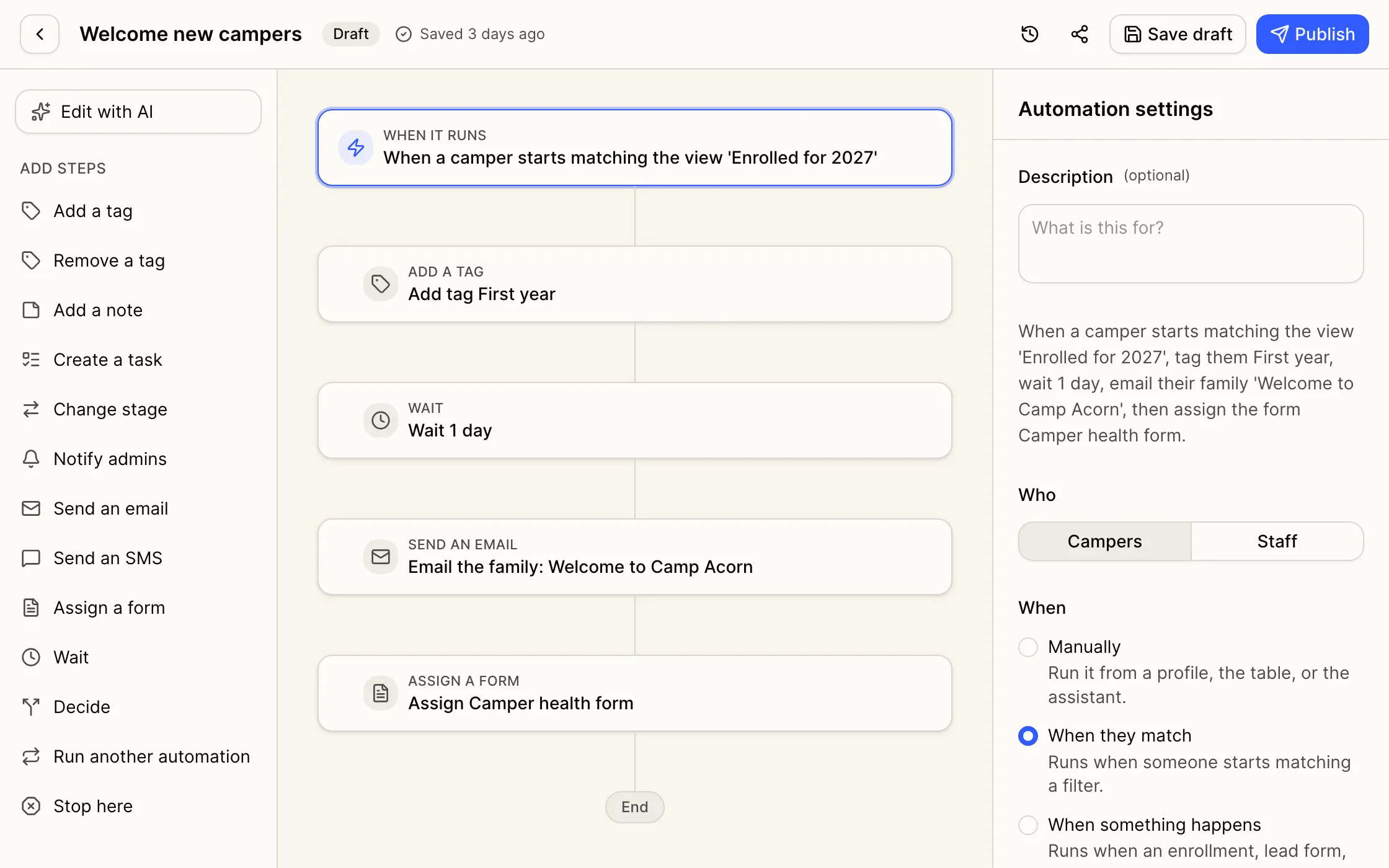
Choose when it runs
Manually. Run it on one person from their profile, or on many from the camper or staff table.
When they match. Pick a saved view or build a filter from any column you can filter by, including session start and end dates. The automation runs for each person as they start to match.
On a schedule. Every day, every weekday, every week, or every month, at a time you choose, for everyone who matches a view or filter.
When something happens. A parent completes an enrollment or submits one for approval, someone fills in a lead form, or someone submits a staff application. When a parent’s enrollment or lead form covers several campers, each step runs for every camper, and emails and texts go once to the parent who submitted.
Build it from steps
Add or remove a tag, add a note, create a task, change stage, notify admins, send an email or an SMS, or assign a form. Emails and SMS can go to the whole family, parents in separate households, and emergency contacts. Wait pauses for minutes, hours, days, or weeks, and Decide splits into up to 4 paths. One automation can also run another.
Describe it, and AI drafts it
Describe what you want, and AI builds the steps from your camp’s existing tags, templates, and forms: “When a camper is enrolled, tag them First year, wait a day, then email their family the Welcome email.” Nothing is saved until you review it, and every automation stays a draft until you publish it.
You can also ask the assistant to set one up. It saves a draft and checks with you before turning it on.
See what ran
Run history shows how each run started, what happened, and anything that went wrong, with a step-by-step timeline for each person. Before a bulk run emails or texts more than 50 people, you’ll be asked to confirm.
Who can use it. Owners and Admins, and any role you give Manage automations. Each step also follows the person’s own permissions. Sending an email, for example, needs edit access to communications.