October 22, 2026
Manage tasks for your whole team
The Tasks page now shows your whole camp’s tasks, not only your own, and it has a place in the sidebar, above Notes. You’ll see it if your role can manage tasks.
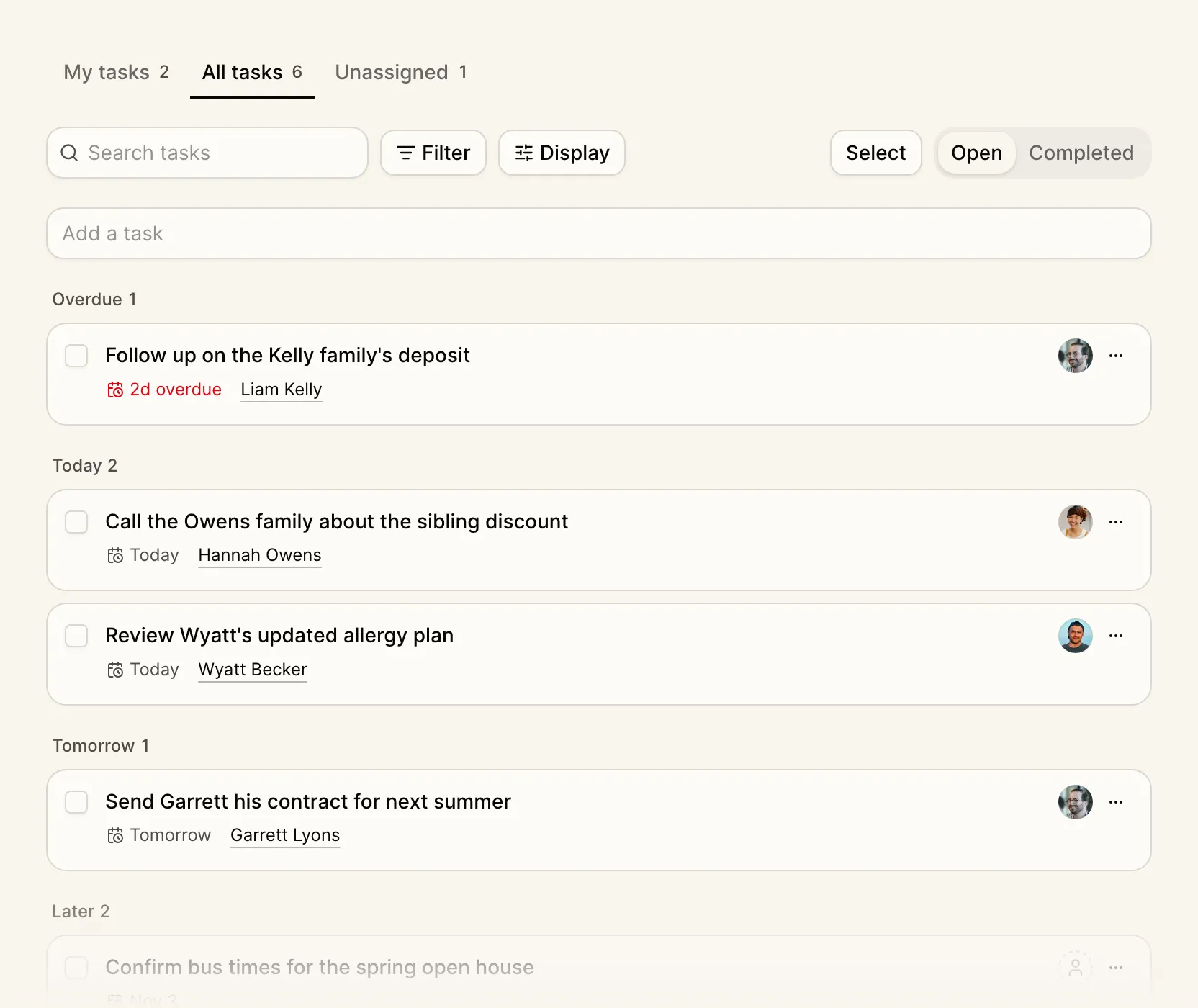
Your tasks, everyone’s tasks, and the ones nobody has picked up
Switch between My tasks, All tasks, and Unassigned, each with a count of what’s open. Search your tasks, then filter by whether a task is linked to campers, staff, or no one, or by when it’s due. Tasks are grouped by due date. Use Display to turn grouping off, or sort by due date, newest first, oldest first, or name A to Z. On All tasks, you can also filter and group by who a task is assigned to.
Update many tasks at once
Use Select to tick the tasks you want, then use the action bar to mark them complete, move their due date to today, tomorrow, or next week, assign or unassign them, or delete them. Completing, rescheduling, or reassigning a task still shows in the activity on the camper or staff profile it belongs to.
Tasks without a profile. A task no longer has to be linked to anyone. Type it in the Add a task box above the list, write a due date in plain words, and use @ to assign it to a teammate. On My tasks and All tasks, a new task is yours unless you @ someone. Add it from the Unassigned tab and anyone can pick it up.
Add tasks from your dashboard. The My tasks card on your dashboard now has an Add a task box too, with the same @ to assign it. You can still add tasks from a camper, family, or staff profile, or for many people at once with Add task in the camper and staff tables.